
VS Code can use LLM models other than GitHub Copilot’s built-in providers for AI-assisted development, including local and offline models, but with some limits.

Microsoft has been pushing hard to make Visual Studio Code a major way to consume its AI services, mostly in the form of GitHub Copilot. GitHub Copilot’s deep integration with VS Code brings many conveniences — inline autocomplete, for instance — but it’s frustrating for those, like me, who would rather use another model provider, or even a locally hosted LLM, for those functions.
Visual Studio Code 1.122 introduced a new feature, “Use BYOK [Bring Your Own Key] without a GitHub sign-in,” that allows you to “use chat, tools, and MCP servers in air-gapped or restricted environments where GitHub sign-in isn’t possible.” More importantly, it “enables fully offline workflows with local models like Ollama.”
In other words, you can now use locally hosted LLMs for chat, tools, and Model Context Protocol servers inside Visual Studio Code. The one thing you still can’t do is use a local LLM for inline and next-edit suggestions — at least, not without additional tooling.
Choosing a model for BYOK mode
If you want to use a local LLM with VS Code’s bring-your-own-model system, the first thing you need is a way to host the model. VS Code lacks a model-hosting mechanism of its own, although it’s conceivable that a VS Code extension may offer something like that in the future. That said, hosting models is complicated enough that a dedicated app is really needed for the job.
One easy way to host models is via a product like LM Studio, a convenient GUI for standing up, serving, and managing LLMs on one’s own hardware. The model host does not have to be the same system you run VS Code on, either. It can be on a server box you control, or on a cloud instance.
The choice of model is also important. Many models are powerful but won’t run well on commodity hardware because they’re simply too big. A good rule of thumb is to choose a model that fits into existing VRAM, along with the memory needed for a sizable token context (the more, the better). Also, the model should be suited to coding and development work. Some models in this vein that fit comfortably into 8GB VRAM include:
- Gemma4 (effective 2 billion parameters version)
- Qwen3.5 9B
- Codestral 22B v.0.1 (proprietary license)
Setting up BYOK mode in VS Code
Once you have a model up and running, you can integrate it with Visual Studio Code. If you’ve disabled VS Code’s AI features, you will need to turn them on. Make sure the setting chat.disableAIFeatures is turned off. You can find it in Settings | Chat | Miscellaneous.
Third-party language models are managed through Visual Studio Code’s language model list. Press Ctrl-Shift-P and type Manage Language Models to open the list of existing language models.
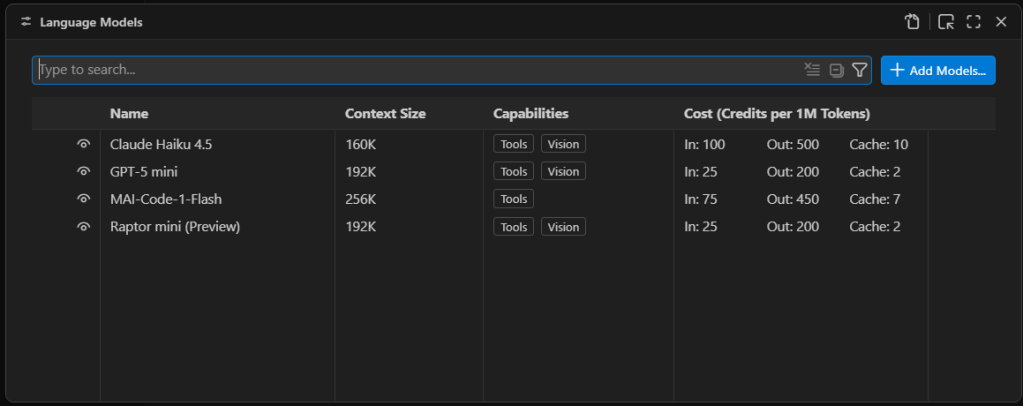
Managing VS Code’s AI language model list. The models available by default are only models available as external APIs, not models that run locally.
Foundry
First you will see a list of the built-in models, which are all externally hosted. To add a new model, select Add Models at the top right and select Custom Endpoint.
You’ll then get a series of prompts:
- Group Name: This is “Custom Endpoint” by default, but you can choose any name you want. The name is strictly for organizing the model list and doesn’t affect things like model recognition or connectivity.
- API Key: If you’ve configured LM Studio to use an API key for serving models, provide it here. If you’re hosting the model locally and you haven’t explicitly set up API keys, you can leave this blank.
- API Type: The options here are
Chat Completions,Responses, andMessages. Most of the time you’ll want to useResponses, as it’s the most general-purpose option of the three.
Once you finish providing those answers, you’ll be dropped into a modal editor for a JSON file that holds the details about the endpoint you’re configuring.
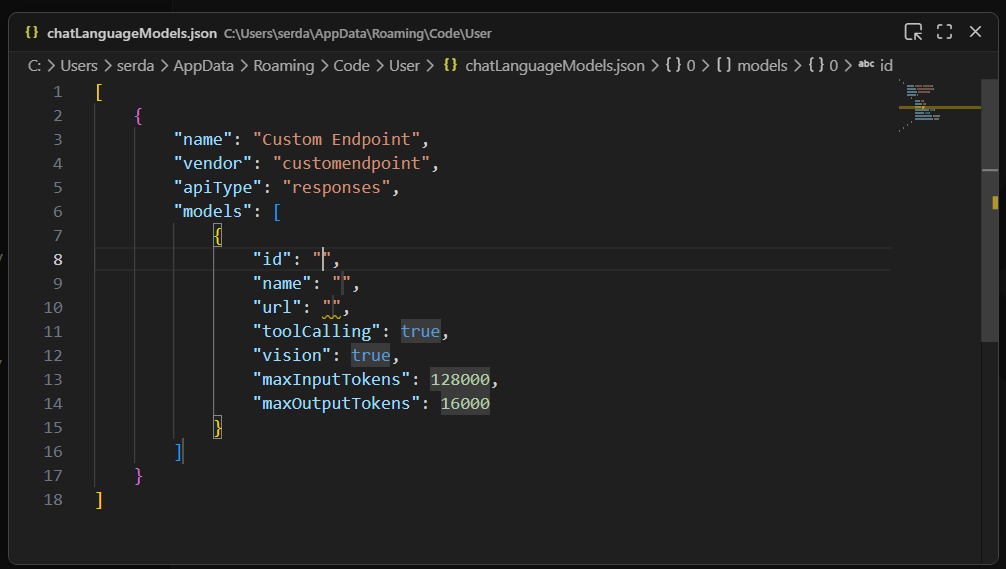
A newly created custom endpoint for a locally hosted model. The ID, name, and URL still need to be defined for this model to be useful.
Foundry
You’ll need to provide a few more details by typing them into the labeled fields:
id: A text field that uniquely identifies this particular entry. The choice of ID is pretty much arbitrary; if you’re using only a single model, the ID could be the model name.name: The name of the model that is used to identify it on the model server. In LM Studio, you can get this name by clicking onMy Modelsin the main interface, then selecting the three-dot icon for the model in question and clickingCopy Default Identifier. For Qwen 2.5, for instance,namemight be something likeqwen2.5-coder-7b-instruct.url: The URL to the server’s endpoint. On LM Studio, this defaults to something likehttp://127.0.0.1:1234/v1. The/v1at the end is important because that endpoint is used for autodiscovery of models and their capabilities.
The other fields generally don’t need editing. Most models have tool calling functionality. If you know for a fact that the model you’re using doesn’t have vision support, then set vision to false.
Once you have these fields filled in, you can close the modal editor to save the changes. If you reload the Manage Language Models page, you’ll now see your new endpoint:
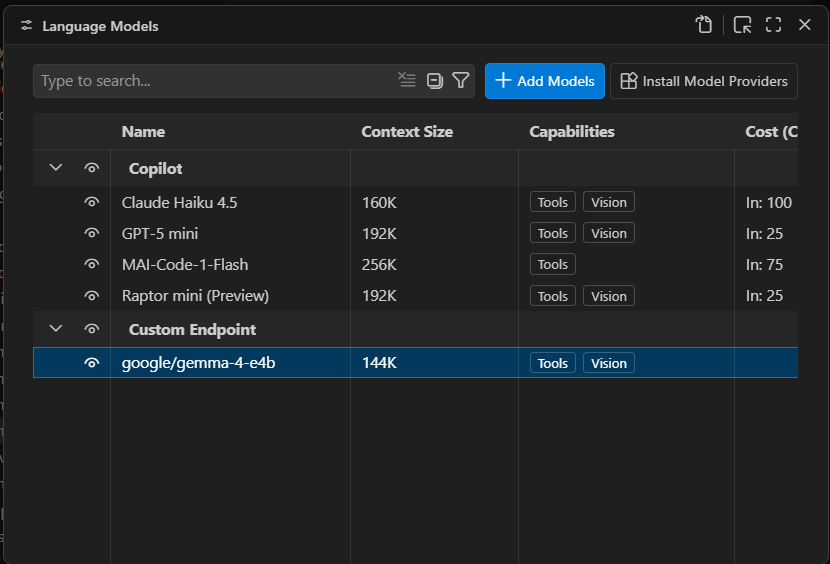
A newly created local endpoint. The choice of name and group is arbitrary. “Custom Endpoint” is the default name for a newly created group of endpoints.
Foundry
You should now be able to launch the chat window and use the defined model for conversation and utilities:
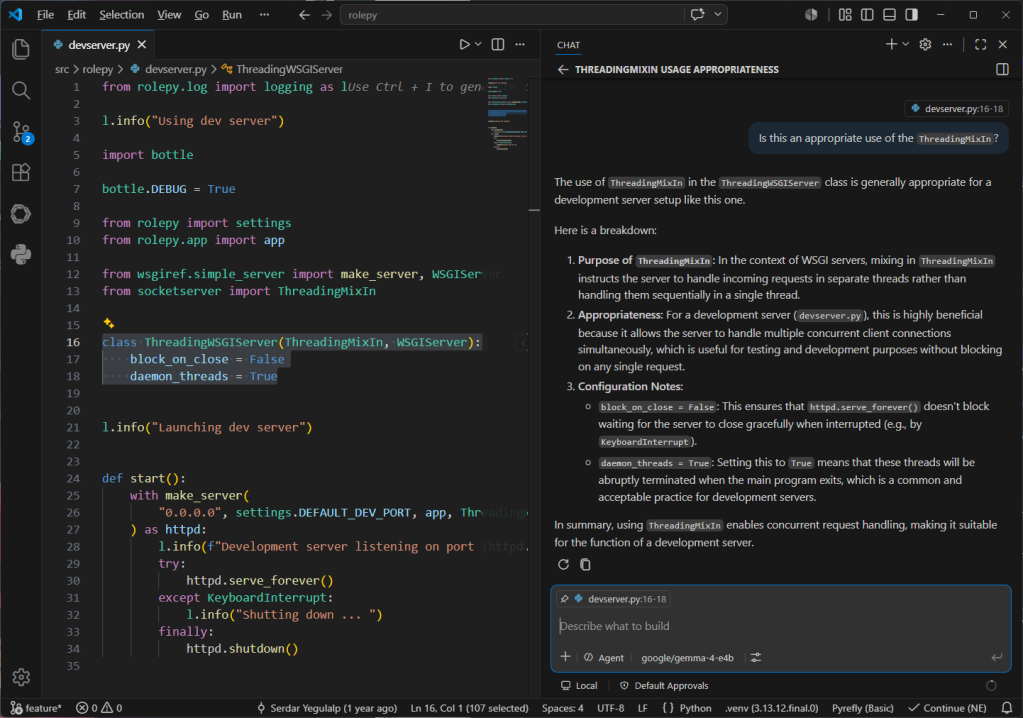
Conversing with the local model using VS Code’s chat window. Note the selected code block in the left pane that is being used as the context for the conversation.
Foundry
One current, and major, limitation of Visual Studio Code’s BYOK functionality is that it only works for chat and utility tasks. It doesn’t allow you to use a local model for inline suggestions or code completions. The only way to take advantage of local models for expanded functionality with VS Code is to use a third-party tool like Continue.
It isn’t clear if Microsoft will eventually lift this restriction. GitHub Copilot integration in VS Code is a large part of how Copilot as a service reaches its target audience. For the time being, you can certainly use third-party and local models for a significant part of your AI-assisted development work in VS Code, and you can close the functionality gap with additional tooling.


